
Requesting and renewing your eHealth certificate
You request or renew your eHealth certificate with the eHealth Certificate Manager. You then load the certificate file into your practice software. A certificate is valid for three years; you can renew it from 90 days before the expiry date. Below we walk through the application, the installation and the renewal, including the differences between Windows and Mac.
What do you need before you start?
For your personal certificate as a physiotherapist, you use your own eID. Working in a group practice does not mean you automatically have to choose an organisation certificate: this guide covers the certificate in your own name.
Have your card reader ready and install the eID software for your computer. The separate eID Viewer lets you check whether your card can be read. The Certificate Manager also needs Java. Keep your eID PIN separate from the password you will shortly choose for the certificate.
Need more background? First read what eHealth does in your physiotherapy practice.
How do you start the Certificate Manager on Windows or Mac?
Go to the official eHealth certificates page. At the top, you will find two ways to open the application. The classic ETEE requestor uses a .jnlp file. With a Java version newer than Java 8, eHealth refers you to the ZIP download of the ETEE certificate manager. The steps below follow that ZIP version.
Download the application via that link. The certificate files further down the same page, such as I.AM and b2b, are not the personal certificate you are looking for.
| Windows | Mac | |
|---|---|---|
| Unzip the file | Right-click the ZIP file and choose Extract All. | Double-click the ZIP file in Finder. |
| Start the Dutch-language application | requestorgui-nl.cmd | requestorgui-nl.sh, via Terminal |
| Find the certificate | In File Explorer, usually in your user folder under ehealth\keystore. | Use the storage location shown by the Certificate Manager and open it in Finder. |
| After start-up | The application is handled in the Certificate Manager. | The same application steps as on Windows. |
On Windows
Open the extracted folder and double-click requestorgui-nl.cmd. Leave the requestorgui folder next to it: it contains the application itself. Do you only see a window flash up briefly, or a message that Java cannot be found? Then have your Java installation checked first. Downloading the ZIP file again and again will not fix that.
On a Mac
Open Terminal, for example via Spotlight. Type cd, followed by a space, and drag the extracted folder from Finder into the Terminal window. Press Return. Then type sh requestorgui-nl.sh and press Return again. This starts the script from the folder that also contains requestorgui.
Does macOS say the developer is unknown? First check that you downloaded the application from ehealth.fgov.be. Then follow Apple's instructions for opening this app, via System Settings, Privacy and Security. If you get a warning about malicious software, do not go any further. A message saying that Java is missing calls for a Java installation and is not solved by this security setting.
How do you request a new eHealth certificate?
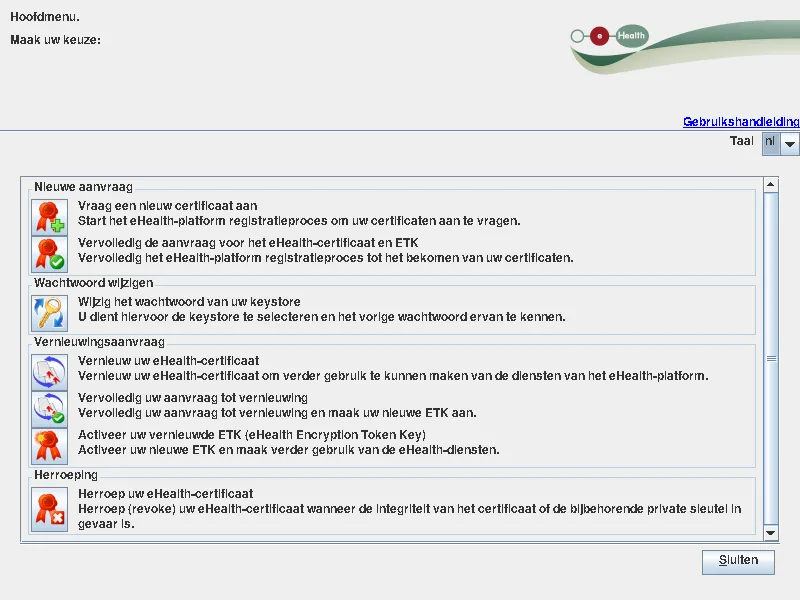
- Start the application. In the main menu, choose the first action under Nieuwe aanvraag (New application). Read the terms of use and follow the procedure with your eID.
- Choose a personal certificate. Enter an email address and phone number where you can be reached. eHealth's confirmations will arrive at that email address.
- Choose a certificate password. Store it in your password manager. You will need it again later to use the .p12 file in your software.
- Send and sign. Check your details and sign with your eID and PIN. Note where the application saves your keystore. That is the file containing your keys.
- Complete the application. As soon as eHealth confirms that your certificate is ready, reopen the Certificate Manager on the same computer. Choose the second action under Nieuwe aanvraag, select your keystore and enter the certificate password. Finish installing the certificate and creating the ETK. The ETK is the key used for encrypted messages.
How do you install the certificate in your practice software?
After the application, you have a file ending in .p12. On Windows, according to eHealth, it is usually stored under C:\Users\your-username\ehealth\keystore. You can also type %USERPROFILE%\ehealth\keystore into the File Explorer address bar. If you chose a different storage folder yourself, look there instead.
On a Mac, copy the storage location from the Certificate Manager. In Finder, open Go, Go to Folder and enter that location. That way you do not depend on a default path that may be different on your computer.
Then open the eHealth or certificate settings of your practice software. Select the .p12 file, enter the certificate password and save. The exact button names vary from one package to another. Simply double-clicking the file in Windows or adding it to Keychain Access on a Mac does not replace this step.
Next, check whether your software can open an eHealth session. Use a built-in connection test if one is available. A working connection is the basis for services such as eAttest, eFact and eAgreement.
Where can you see when your certificate expires?
If your practice software shows the validity date, check the date of the certificate that is actually loaded. The date on which you copied or downloaded the file says nothing about its validity.
You can also work out the expiry date from the original file name. It contains the creation date as YYYYMMDD. If it says 20260827, for example, the certificate was created on 27 August 2026 and expires three years later, on 27 August 2029. This works as long as the original name has been kept.
Set a reminder for 90 days before the expiry date. That leaves you time to complete both the renewal and the switch in your software.
How do you renew an existing certificate?
Make sure your current .p12 file is on the computer and that you know its password. You can only renew during the last 90 days of validity. If the certificate has already expired, you have to start a new application.
Under Vernieuwingsaanvraag (Renewal application), there are three actions. Complete them in this order:
- Vernieuw uw eHealth-certificaat (Renew your eHealth certificate). Select the existing certificate and go through the renewal application.
- Vervolledig uw aanvraag tot vernieuwing (Complete your renewal application). After the confirmation, finish registering the new certificate and the encryption key.
- Activeer uw vernieuwde ETK (Activate your renewed ETK). Select the new keystore and activate the new key when you are ready to switch over. This deactivates the old ETK.
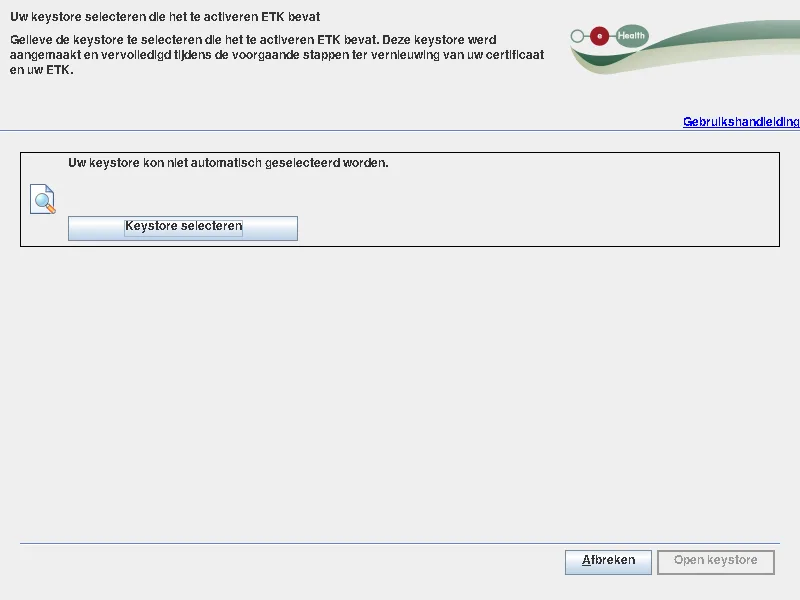
Then load the renewed .p12 file into your practice software and check the connection again. If you use your certificate in several applications, go through all of them. Plan that switch for a quiet moment.
Also keep your old certificate and its password in a safe place. You may still need them to read older encrypted messages. So an expired certificate is not a file you should simply throw away.
What do you do if it does not work?
Write down the full error message and the step at which it appears. That helps more than just reporting that eHealth is not working.
| Problem | What can you check? |
|---|---|
| The .jnlp file does not open | With Java newer than version 8, use the official ZIP version. Start the .cmd file on Windows or the .sh file on Mac. |
| The eID cannot be read | Test the card in the eID Viewer. Check the connection, try another USB port or card reader and check whether the eID software is installed correctly. |
| Invalid identity card signature | In the eID Viewer, under Certificates, check the line with your name and Signature. eHealth lists a green tick and NonRepudiation under Usage as the points to check. If these are missing, contact your municipality. |
| The certificate password does not work | Check that you selected the right .p12 file and are using the password that goes with it. That password is not your eID PIN. |
| Renewal is not possible | Check the expiry date. Outside the last 90 days it is too early; after expiry, a new application is required. |
| Your software still shows an error after the renewal | Check that all three steps have been completed and that your software is using the new file. Also check the eHealth status overview. |
For older eID cards, eHealth has published a specific explanation about signatures since May 2026. A warning about a qualified signature on a card issued up to and including 30 June 2016 does not automatically mean you can no longer request an eHealth certificate.
If you have a connection problem, check the eHealth status overview before starting again. If you cannot solve it, contact your software supplier or the eHealth contact centre on 02 788 51 55. Provide the error message, but do not just send along your .p12 file and password.
If your password is truly lost, you cannot retrieve it from eHealth. Get in touch about revoking your certificate and requesting a new one.
Which guide can you keep next to your screen?
The official guide with screenshots covers the application from page 5 and the renewal from page 22. It dates from 2018, so for starting the application, use the current Windows and Mac instructions above. The screenshots in this article are our own captures of the official ZIP version offered by eHealth.
Also add the certificate to your checklist for digitalising your physiotherapy practice. Note who manages it, where it is stored securely and when you need to renew it next.
Sources
- eHealth platform: current download, 36-month validity and renewal from 90 days before the expiry date
- eHealth platform: application and renewal with screenshots, guide version 2.0 (2018)
- eHealth platform: storage location, expiry date and error messages
- Belgian government: eID software and eID Viewer for Windows and macOS
- Apple: open a Mac app from an unknown developer
- eHealth platform: secure use and storage of old certificates (2023)
- eHealth platform: explanation about older eID cards, 1 April 2026
eHealth in your daily practice
See how Nollie brings eHealth services together in your practice software.
Discover eHealth with NollieFrequently asked questions
How long is an eHealth certificate valid?
A personal eHealth certificate for use in your practice is valid for 36 months. You can renew it from 90 days before the expiry date. Check the date in your practice software or work it out from the creation date in the original .p12 file name. Plan the renewal well before your certificate expires.
What if my eHealth certificate has already expired?
An expired eHealth certificate can no longer be renewed through the renewal procedure. You have to submit a new application in the Certificate Manager, complete it and load the new file into your practice software. Keep the old certificate and password safe: you may still need them to open older encrypted messages.
What is the difference between the eID PIN and the certificate password?
The PIN belongs to your identity card and you use it when you identify yourself or sign with the card. You choose the certificate password yourself in the Certificate Manager. It protects your .p12 file and is needed when setting up your practice software. Keep both safe, as they are not interchangeable.
Do I need to change anything in my practice software after a renewal?
Yes. Once you have requested and completed the renewal and activated the renewed ETK, your practice software must use the new certificate file. Load the new .p12 file with its password and check the connection. If you use several applications with that certificate, check the settings in each of them.
Read more
Requesting an eAgreement: from prescription to response
From a legible prescription to the health insurance fund's decision: how to prepare an eAgreement, follow up its status and provide missing information.
Checking insurability: how to read Member Data
What do the codes and messages in Member Data mean? Here is how to read your patient's insurability and what you still need to check before treatment and billing.
Digitalisation 2027: a checklist for physios
Prepare your physiotherapy practice step by step for 1 January 2027. A schedule for certificates, software, practice runs and team agreements, including the official exceptions.